 Statiks
The short answer
Open Spotify’s account privacy page, select “Extended streaming history” under “Download your data” and request it. Spotify confirms your request by email. Within up to 30 days you’ll get a second email with a ZIP file that contains every stream since you created your account.
Step by step
- 01
Open your account privacy page
The quickest way is through the Spotify app, because you’re already signed in there: go to Settings → Privacy and social, scroll down and tap “View more options”. Spotify opens its privacy page in your browser. On a computer, go to spotify.com/account/privacy and sign in. Then scroll down to “Download your data”.
- 02
Select only “Extended streaming history”
Tick “Extended streaming history” and untick “Account data” and “Technical log information”. Account data only covers about the last year, and the technical logs aren’t needed for your listening history.
- 03
Request the data
Click “Request data”. Spotify emails you right away that it’s gathering your data. There’s nothing else to do. Only if the email contains a confirmation link, click it, otherwise Spotify won’t start preparing your export.
- 04
Wait for the export
Spotify says preparing the extended history can take up to 30 days. It’s often faster. When it’s ready, you get a second email with a download link.
- 05
Download the ZIP
Download the file soon after the email arrives. The link is only valid for a limited time. If it has expired, simply request the export again.
Which Spotify export do you need?
The “Download your data” section offers three packages. You can request them separately or together, but only one contains your complete listening history.
Account data
- What it contains
- Playlists, library, profile, search queries and more
- Listening history
- About the last 12 months
Extended streaming history
- What it contains
- Every stream with time, duration, device and more
- Listening history
- Since you created your account
Technical log information
- What it contains
- Technical logs about your devices and app usage
- Listening history
- Not included
What’s inside the ZIP
The extended export is a ZIP file with a folder of JSON files. Each file holds a slice of your history, split by year range so no file gets too large. Music and podcasts are in the audio files, video podcasts in separate video files.
The most important fields
Every entry in the audio files is one stream. These are the fields you’ll use most:
- ts
- When the stream ended, in UTC
- ms_played
- How many milliseconds you listened
- master_metadata_track_name
- Track name
- master_metadata_album_artist_name
- Artist name
- master_metadata_album_album_name
- Album name
- spotify_track_uri
- The track’s unique Spotify ID
- reason_start / reason_end
- Why the track started or ended, e.g. “trackdone” or “fwdbtn”
- skipped
- Whether you skipped to the next track
- shuffle
- Whether shuffle was on
- offline
- Whether the track was played offline
- incognito_mode
- Whether it was played in a Private Session
- platform / conn_country
- The device platform and the country you streamed from
Podcast episodes use their own fields such as episode_name and episode_show_name. The export also contains technical details such as your IP address, so treat it like any other personal data.
Got files named StreamingHistory_music_0.json with only endTime, artistName, trackName and msPlayed? That’s the shorter account data export, which only covers about a year.
Turn your export into stats with Statiks
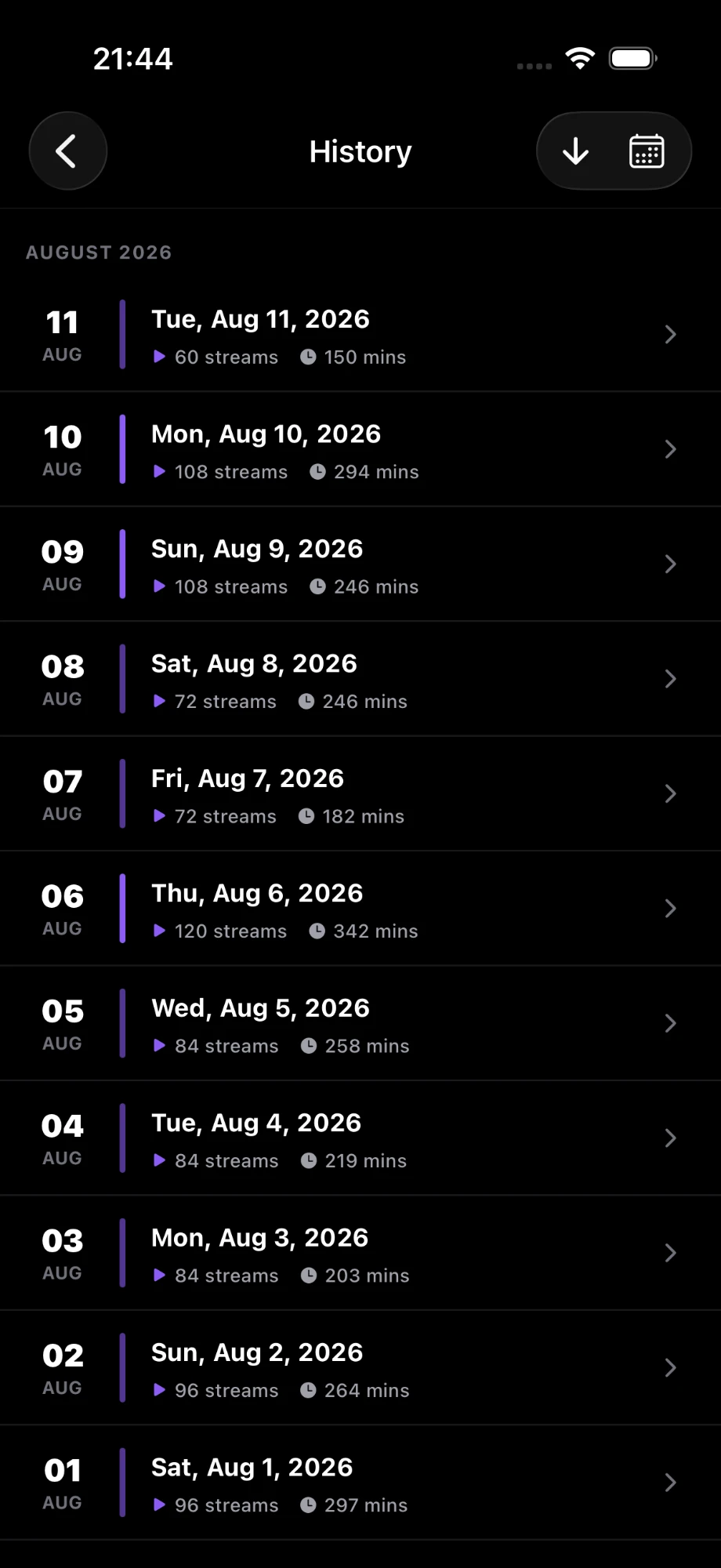
Reading thousands of JSON entries isn’t much fun. Statiks turns the ZIP into your all-time stats on iPhone: top tracks, artists and albums for any time range, listening patterns, streaks and a day-by-day history.
- Upload the ZIP as it is. No unzipping, no renaming.
- Find the import in the app under Settings → Import streaming history.
- Statiks processes the file in the background and matches every play with Spotify’s catalog.
- After the import, new plays keep your history up to date.
 The history import is part of Statiks Plus.
How Statiks handles your import is described in the privacy policy.
Frequently asked questions
How long does Spotify take to send the extended streaming history?
Spotify says up to 30 days. Many exports arrive sooner. The account data export is faster, usually within about 5 days, but it only covers roughly the last year.
Is requesting my Spotify data free?
Yes. Under the GDPR you have a right to a copy of your personal data, and Spotify provides it free of charge through the “Download your data” tool.
Can I request my data in the Spotify app?
Not inside the app itself, but the app takes you there: in Settings → Privacy and social, tap “View more options” and Spotify opens the privacy page in your browser, already signed in. On a computer, open spotify.com/account/privacy directly.
My export only contains the last year. What went wrong?
You probably received the account data export. Request “Extended streaming history” on the privacy page to get your complete history.
The download link doesn’t work anymore. What now?
Download links are only valid for a limited time. Request the export again on the privacy page and download it soon after the email arrives.
Are podcasts and Private Sessions included?
Yes. Podcast episodes have their own fields in the same audio files, video podcasts come in separate video files, and the incognito_mode field marks streams from a Private Session.
Do I need Spotify Premium?
No. Every Spotify account, Free or Premium, can request its data.
Your export is waiting to be explored
Download Statiks, upload your ZIP and see what years of listening say about you.